Here’s something nobody tells you when you set up WordPress: the name you use to log in and the name shown on your posts are the same thing by default.
That means if you created your admin account as john, every article you publish shows “Posted by john” at the bottom. And now anyone who wants to brute-force their way into your dashboard has half the puzzle already solved. They just need the password.
I caught this right after finishing my own setup. Let me show you how to fix it in about three minutes.
Why This Actually Matters
WordPress login attacks are almost entirely automated. Bots constantly crawl sites looking for /wp-admin, then hammer it with username and password combinations. The two most common usernames they try are admin and whatever name they found on your posts.
You’ve probably already hardened your password. But if your author name is visible on every post and it matches your login username, you’ve handed attackers the first half of your credentials for free.
The fix is simple: never publish under your admin account.
The Right Setup
You want two separate users:
- Admin account: for logging in, installing plugins, changing settings. Never publishes anything. Never appears on the front end of the site.
- Author account: the name your readers see. Has just enough permissions to write and publish posts, nothing more.
This way your admin username is never exposed anywhere on the site. Even if someone finds your author name, it can’t be used to access the admin panel.
How to Set It Up
Log into your WordPress dashboard and go to Users → Add New User.
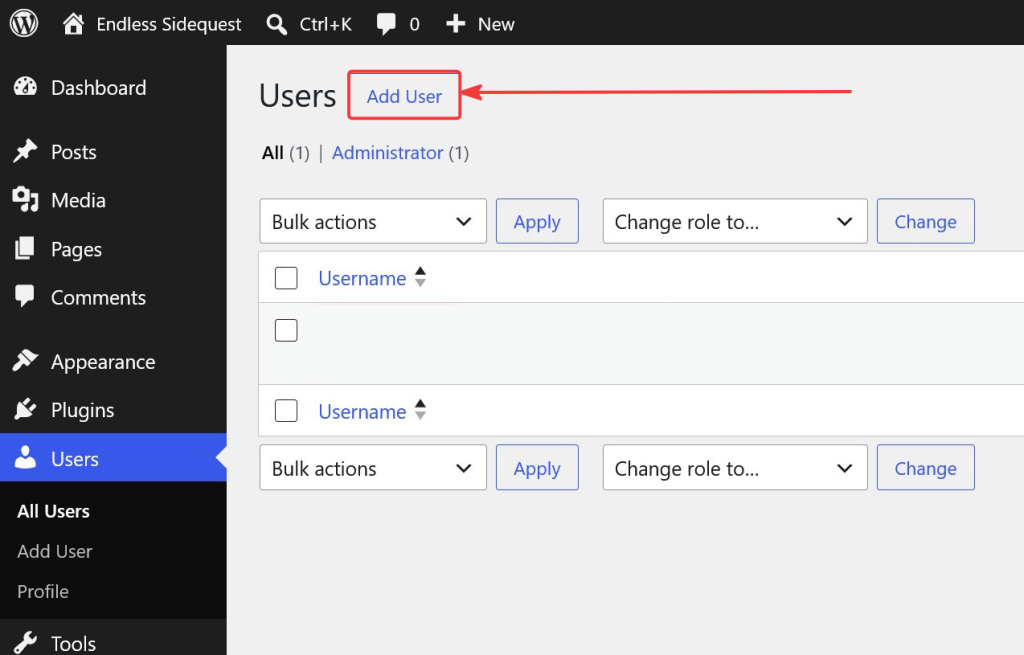
Fill in the details for your author account:
- Username: something you’re comfortable with readers potentially seeing in URLs (e.g.
osmanor a pen name) - Email: WordPress won’t let you reuse the same email as your admin account. Use the Gmail dot trick — Gmail ignores dots in addresses, so
[email protected]and[email protected]land in the same inbox but WordPress treats them as different. Alternatively, set up[email protected]once you have email configured for your domain. - Role: set this to Author — this lets the account write and publish posts, but not install plugins, add users, or touch settings
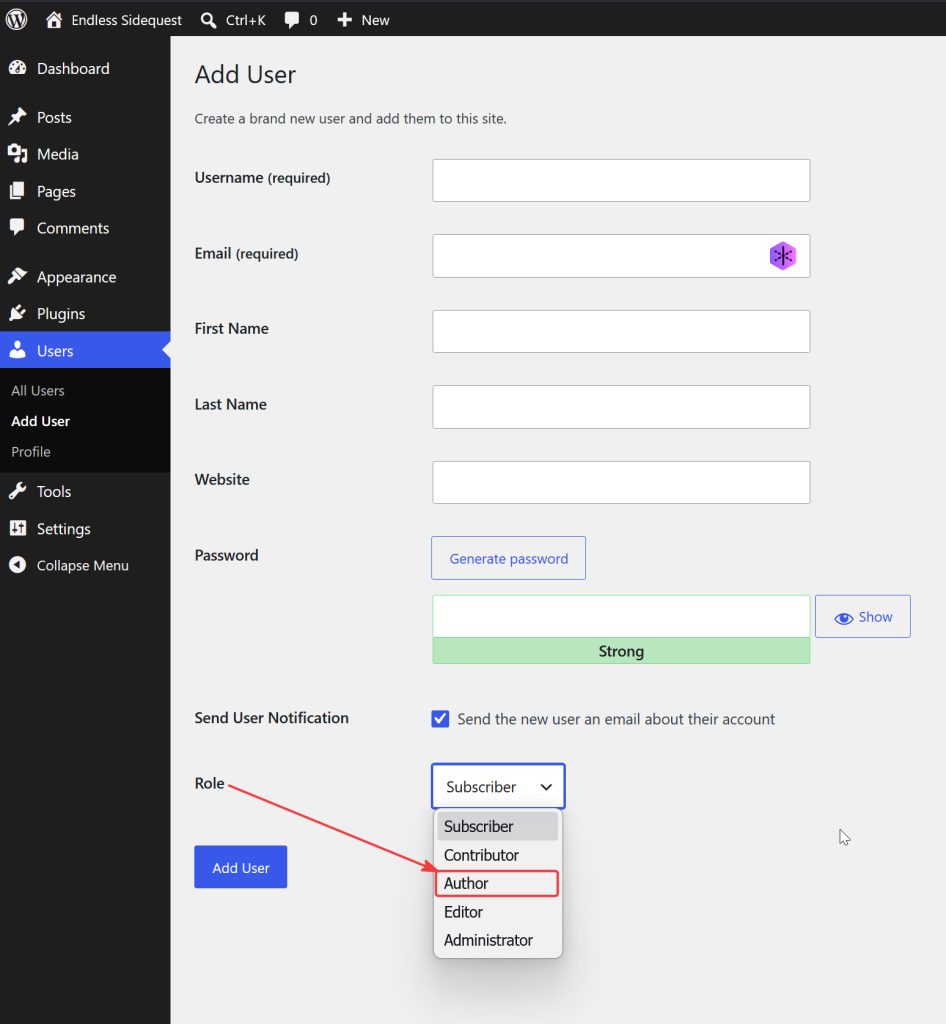
Click Add New User.
Move Your Existing Posts
If you’ve already published anything under your admin account, reassign those posts to the new author.
Go to Posts → All Posts, select the posts you want to reassign, then use Bulk actions → Edit → Change Author to switch them over.
One More Thing
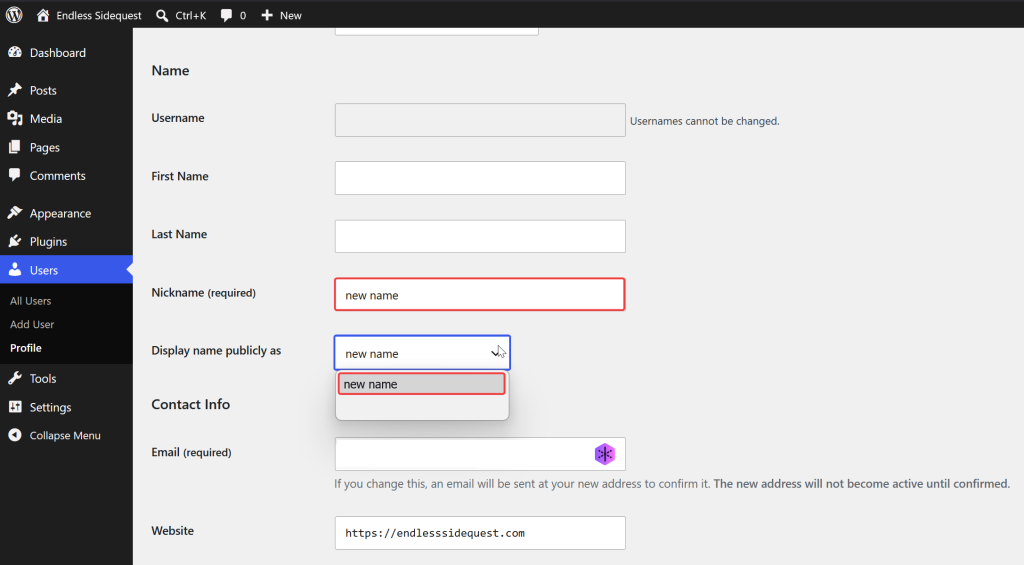
While you’re in Users, click into your admin account profile. Scroll down to the Name section and fill in the Nickname field with whatever you want. Your full name, your site name, anything. Then scroll down and hit Update Profile to save.
Only after saving will the new nickname appear as an option in the Display name publicly as dropdown. Open that dropdown, select your nickname, and save again. This is what gets shown if your admin account name ever surfaces anywhere on the site — make sure it’s not your actual login username.
Going Forward
From now on, the workflow is:
- Log into
/wp-adminwith your admin account - Switch to your author account to write posts.
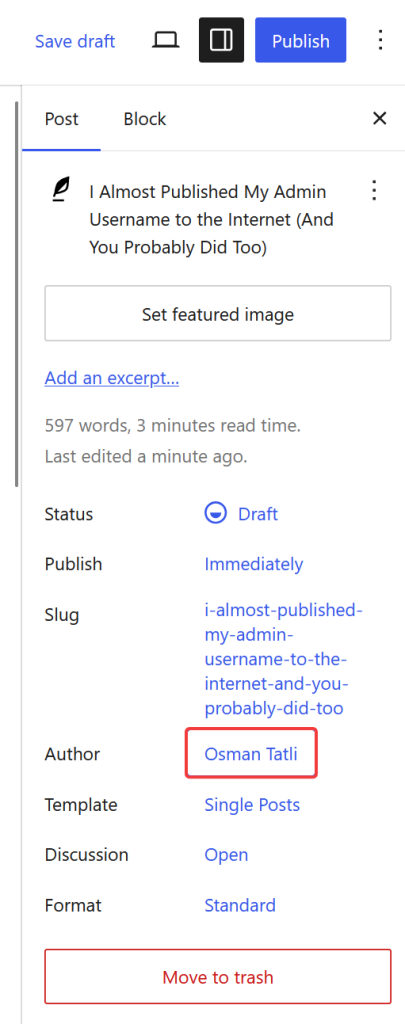
Or just write everything in the admin panel and make sure the author field on each post is set to your author account before publishing
WordPress shows the author selector in the post editor under Post → Author in the right sidebar. Takes one second to check before hitting publish.
That’s it. Three minutes of setup, one less attack vector, and your readers see a clean author name that isn’t also your login credential.